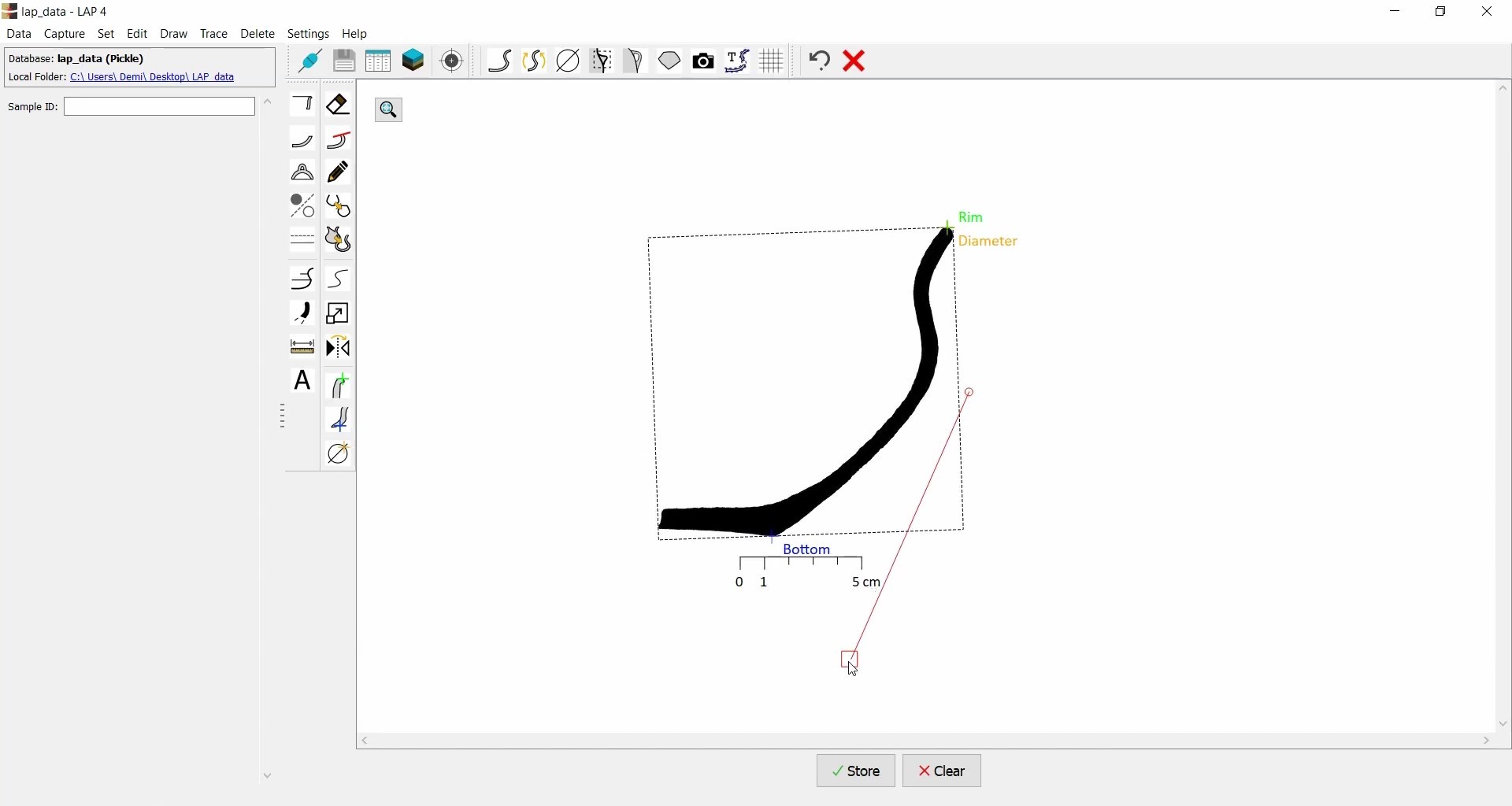
Trace: Join Profile Segments
The LAP scanning range is approximately 25 cm, but larger profiles can be captured using the Trace function.
To capture larger profiles:
- Use Capture Detail (
 ) mode.
 - Capture the profiles in multiple steps (e.g., top and bottom separately).
Profiling larger objects is demonstrated here by simulating a reduced scanning range using the crop envelope. This approach mimics the need to capture a longer profile in multiple segments due to the device's limited range.
Capture Large Profile
- Go to Capture Detail mode.
- First capture the upper part of the vessel.
- Go to Capture Detail again and capture the lower part of the vessel.
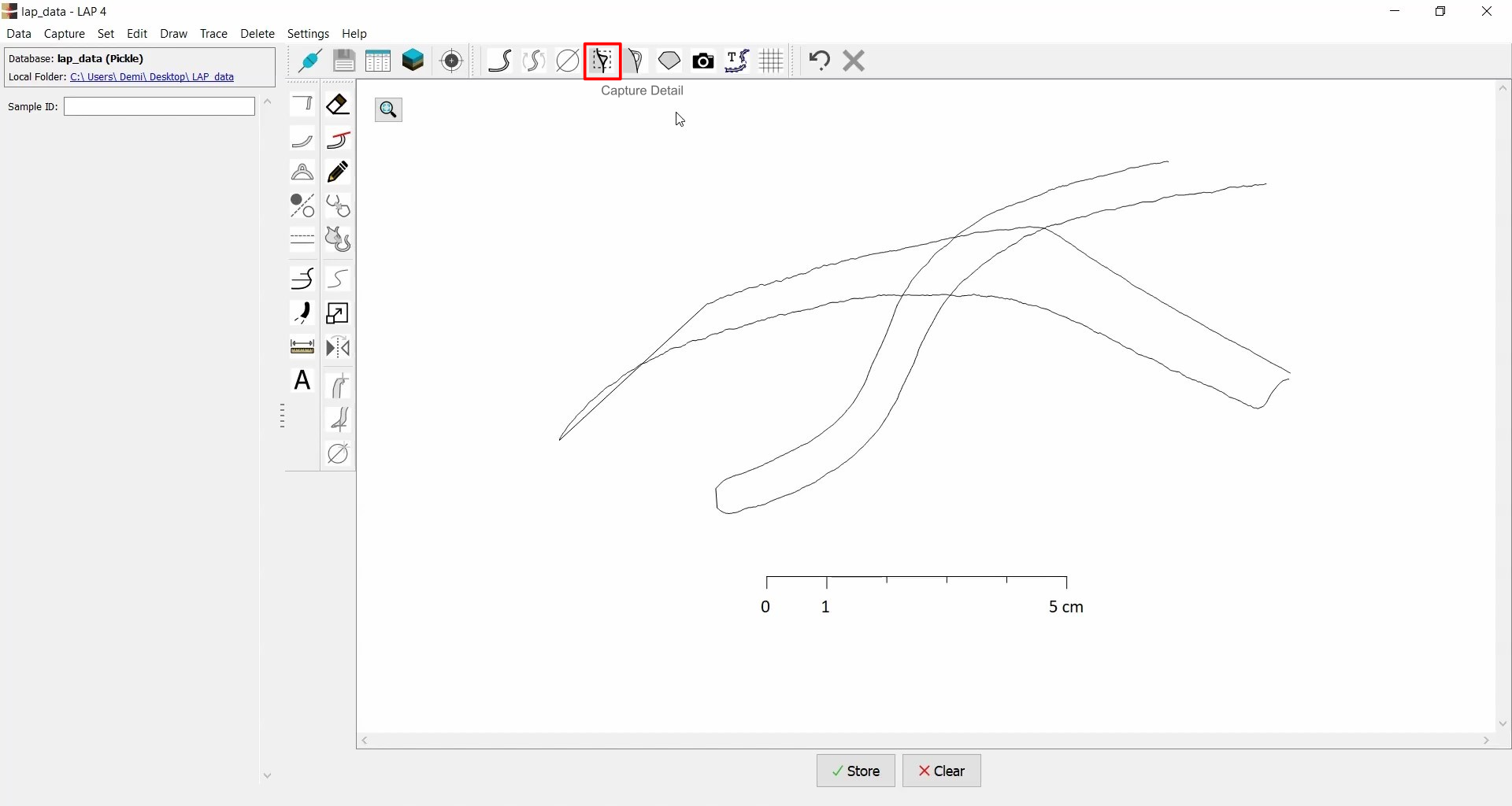
Align Profiles
- Rotate and align the two captured parts (exact orientation is not required yet).
- Use the Trim (
 ) function to remove unwanted loops or overlaps.
 - Ensure profiles are correctly aligned and set both as filled using the Fill Detail (
 ).
).

Editing in Trace Mode
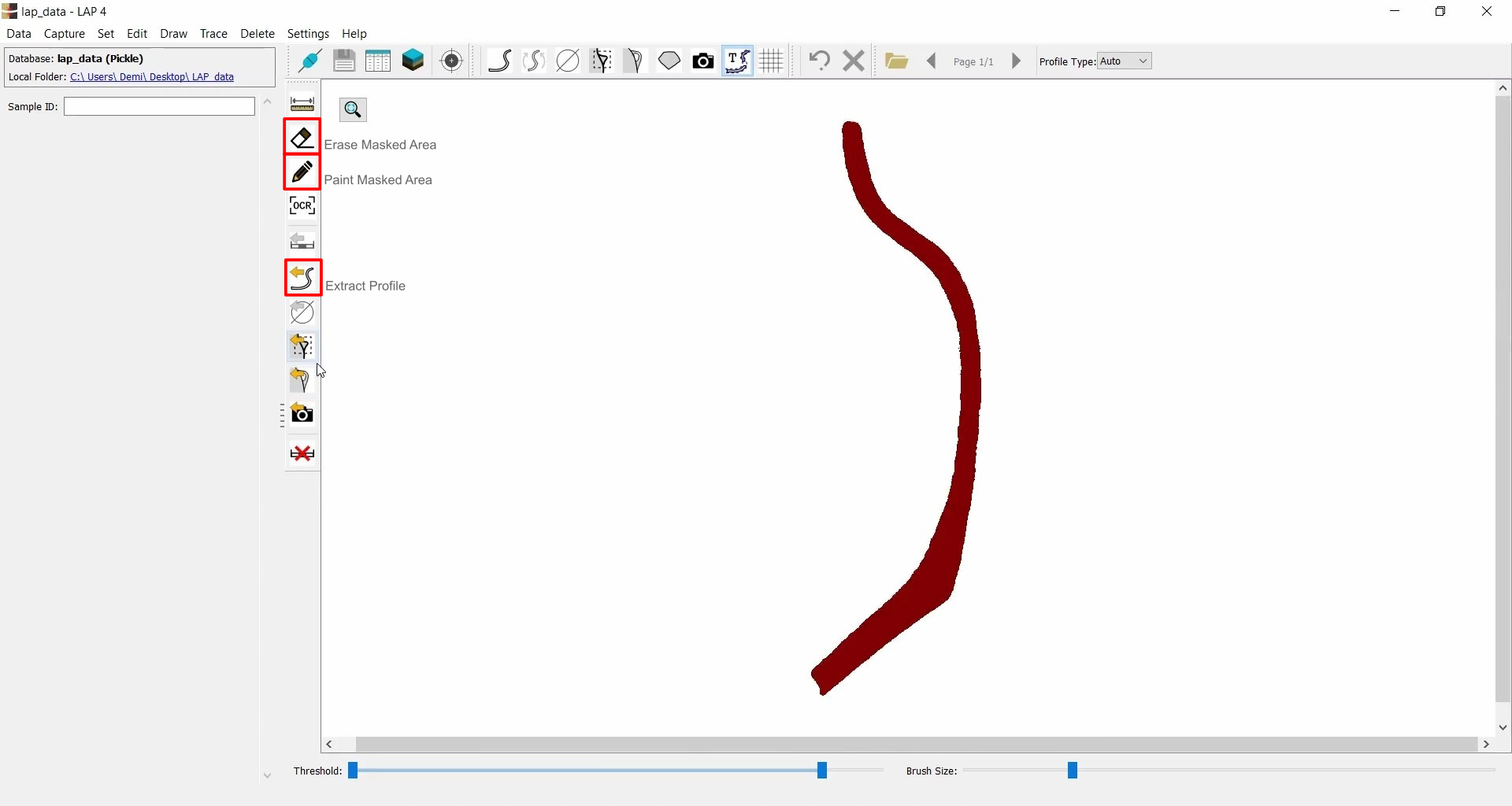
- Select both captured details and go to Trace Mode (
 ) - at this point, the profiles are rasterized (converted into a raster image).
 - Use Erase Masked Area (
 )
and Paint Masked Area (
)
and Paint Masked Area ( ) to clean up the drawing.
 - Once editing is done, click Extract Profile (
 ).
).
Finalize the Profile
- The full outline is now saved as a proper single profile.
- You can delete the original captured details.
- The new profile can now be oriented and used as usual.