Details and Handles
The LAP software organizes each drawing around one main profile and as many details as needed. A detail is any additional shape - handles, protomes, other protrusions, or secondary cross-sections of non-circular vessels.
ℹ️ Note: Each detail can be assigned its own color, line type, and closed/open state independently.
Capture Detail acquires each additional feature using the laser. Where the laser cannot reach - such as the inner outline of a handle — use Capture Handle, which uses the camera. Afterward, use editing tools to clean up and complete the drawing.
Capture the Handle Outline
Use Capture Detail to acquire the outer profile of the handle where it connects to the vessel body.
| Icon | Description |
|---|---|
 |
Capture Detail |
- Switch to Capture Detail mode.
- Scan the outer profile of the handle using the Capture button.
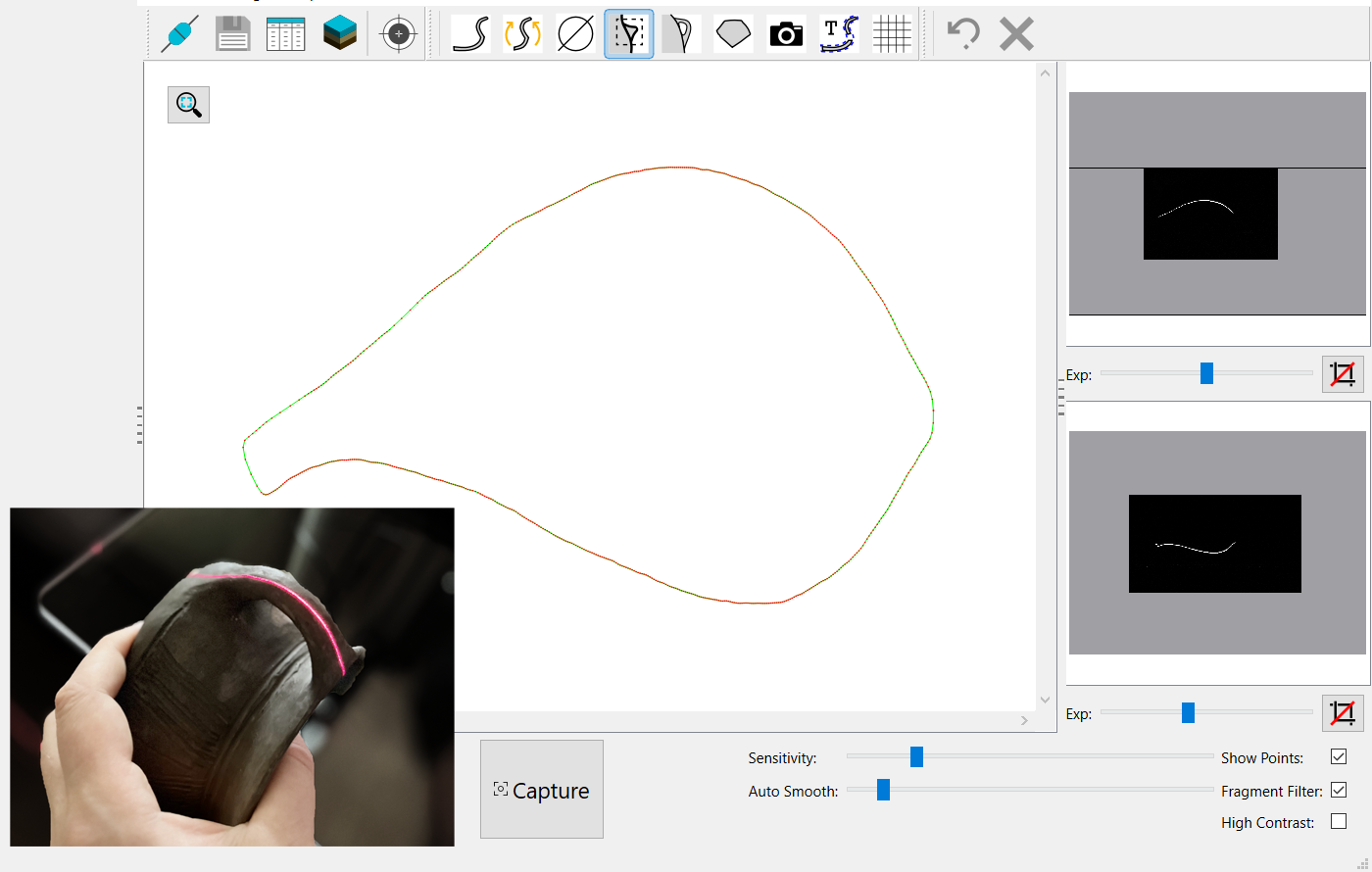
- Rotate the handle as needed. Hold Alt to freely reposition the rotation pivot.
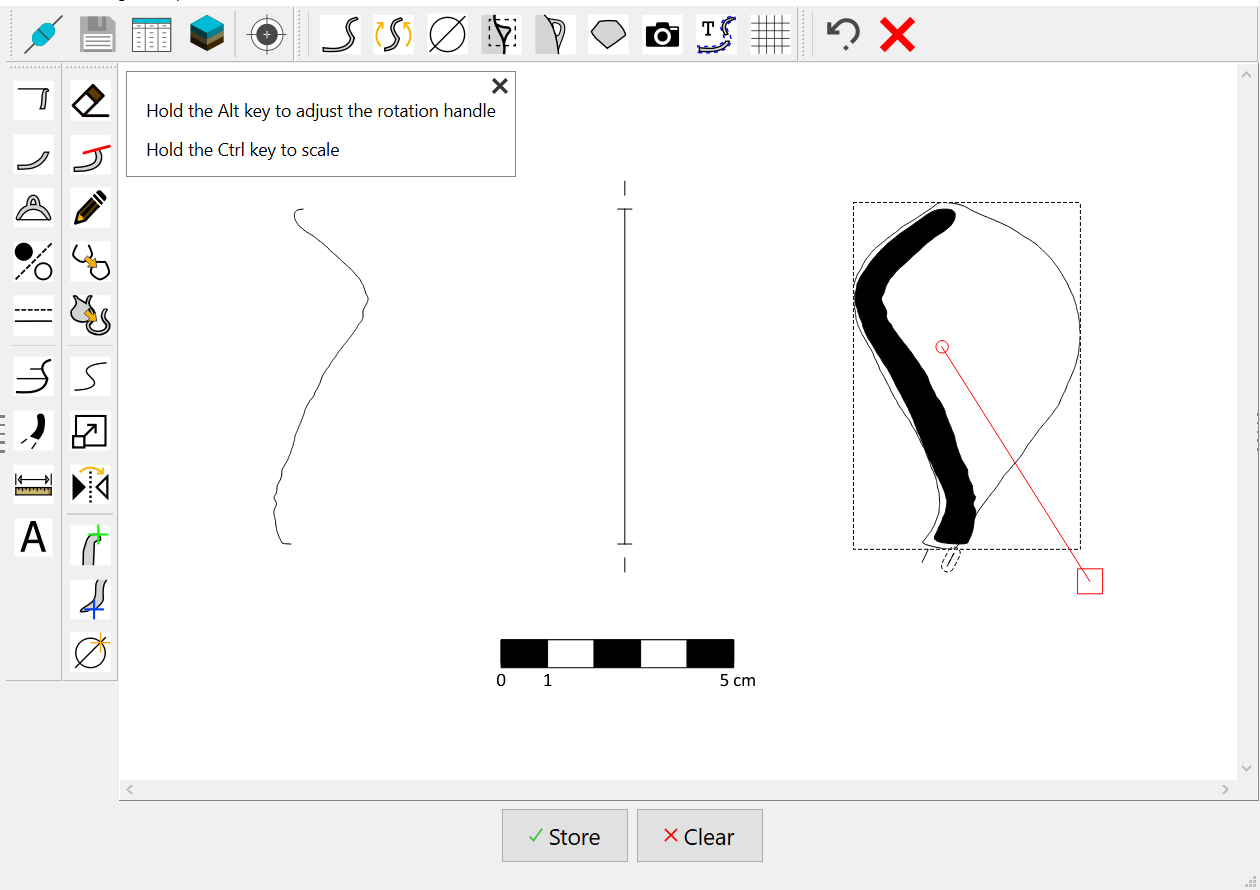
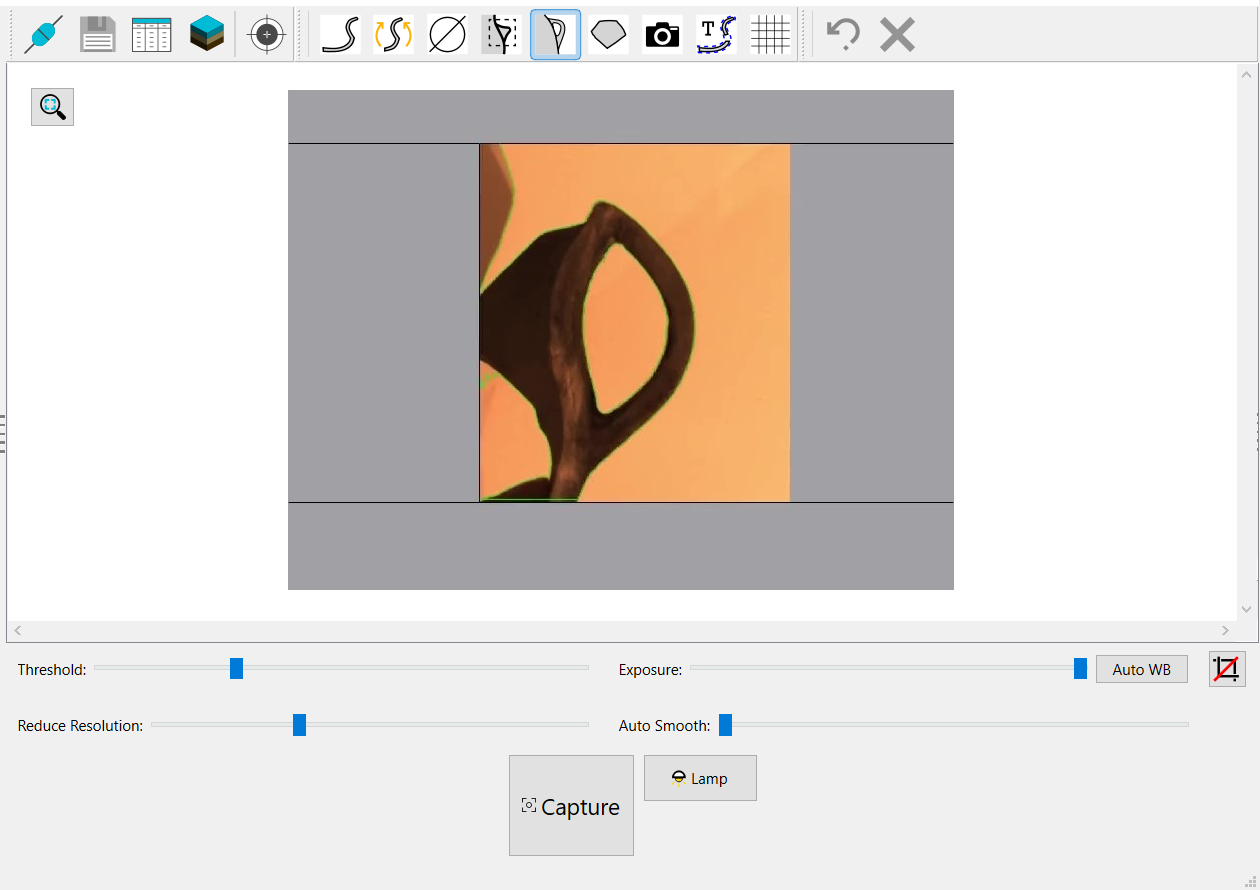
Since the laser cannot reach inside the handle, use Capture Handle to complete the outline:
| Icon | Description |
|---|---|
 |
Capture Handle |
- Switch to Capture Handle mode.
- Place a white paper sheet on the glass pane as a background.
- Turn off the lamp to eliminate shadows, then increase exposure to bring out the outline.
- Use Crop to isolate the handle area.
- Capture the handle.
Edit and Adjust the Handle
- Unwanted parts of the image can be removed using Trim Profile.
| Icon | Description |
|---|---|
 |
Trim Profile |
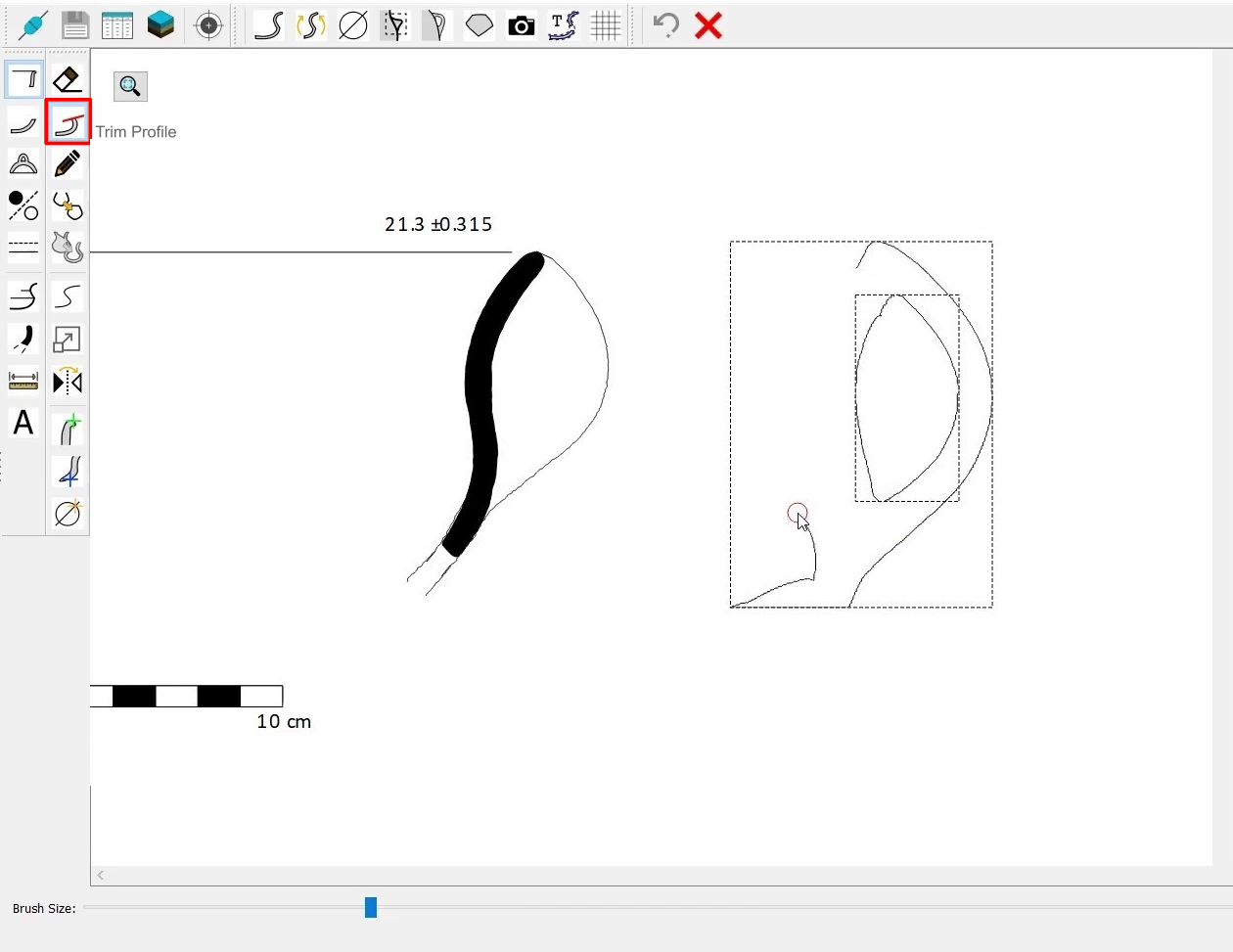
- If the handle size is incorrect, use Scale (
 ) to adjust it.
 - Place the edited handle in its correct position on the drawing.

Replace and Duplicate the Handle
If duplicate details are present:
- Identify and remove the incorrect ones using the Del key or the designated button.
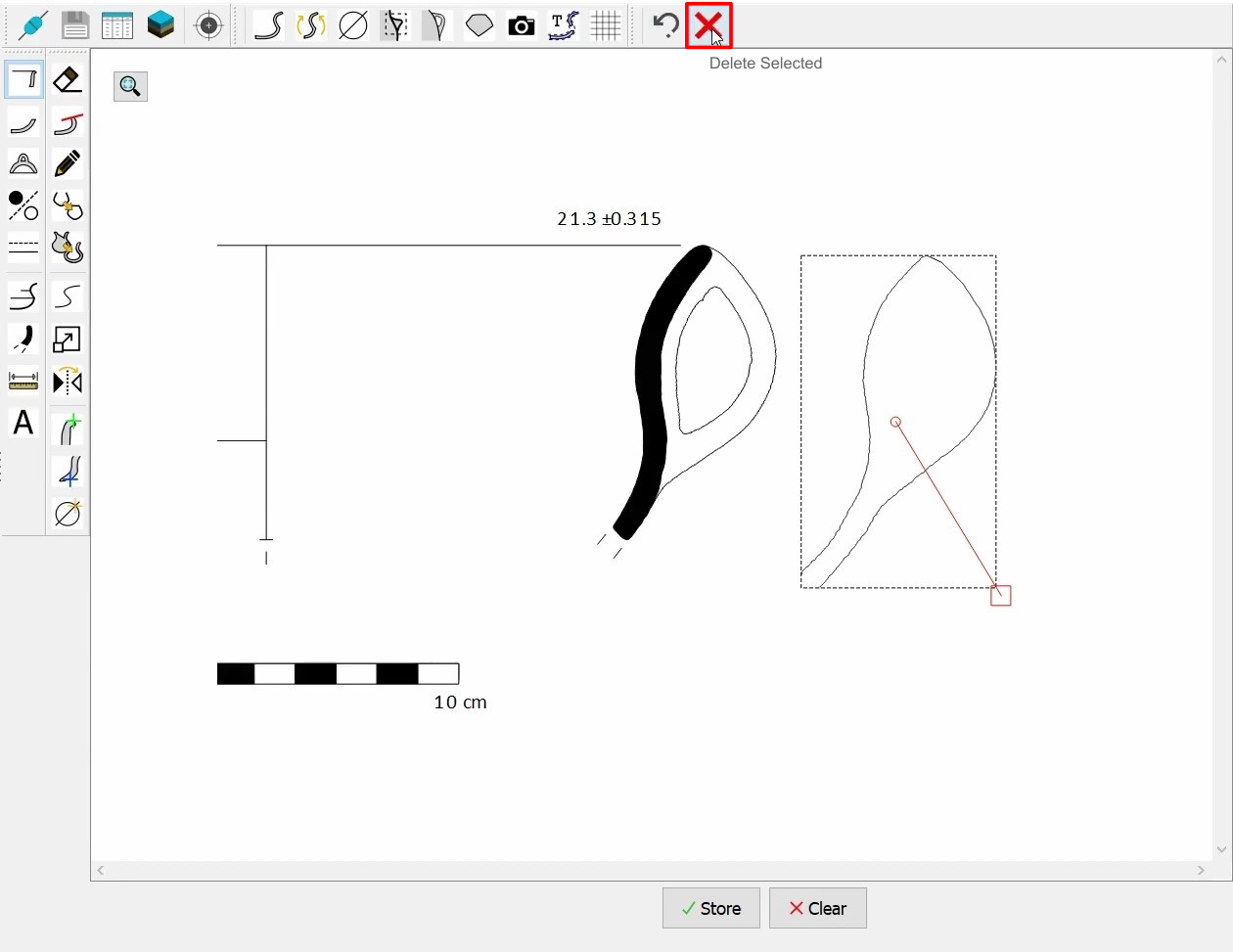
To display the handle on both sides:
- Select the handle detail and use Edit / Duplicate.
- Choose Detail (not Profile).

- Use Flip Horizontally (
 ) to mirror it.
 - Move the mirrored detail to the opposite side of the profile.
- Optionally, use Trim () and Smoothen (
 ) tools to refine the shape.

Capture the Handle Cross-Section
| Icon | Description |
|---|---|
|
Capture Detail |
- Switch again to Capture Detail mode.
- Hold the handle under the laser and capture its cross-section.
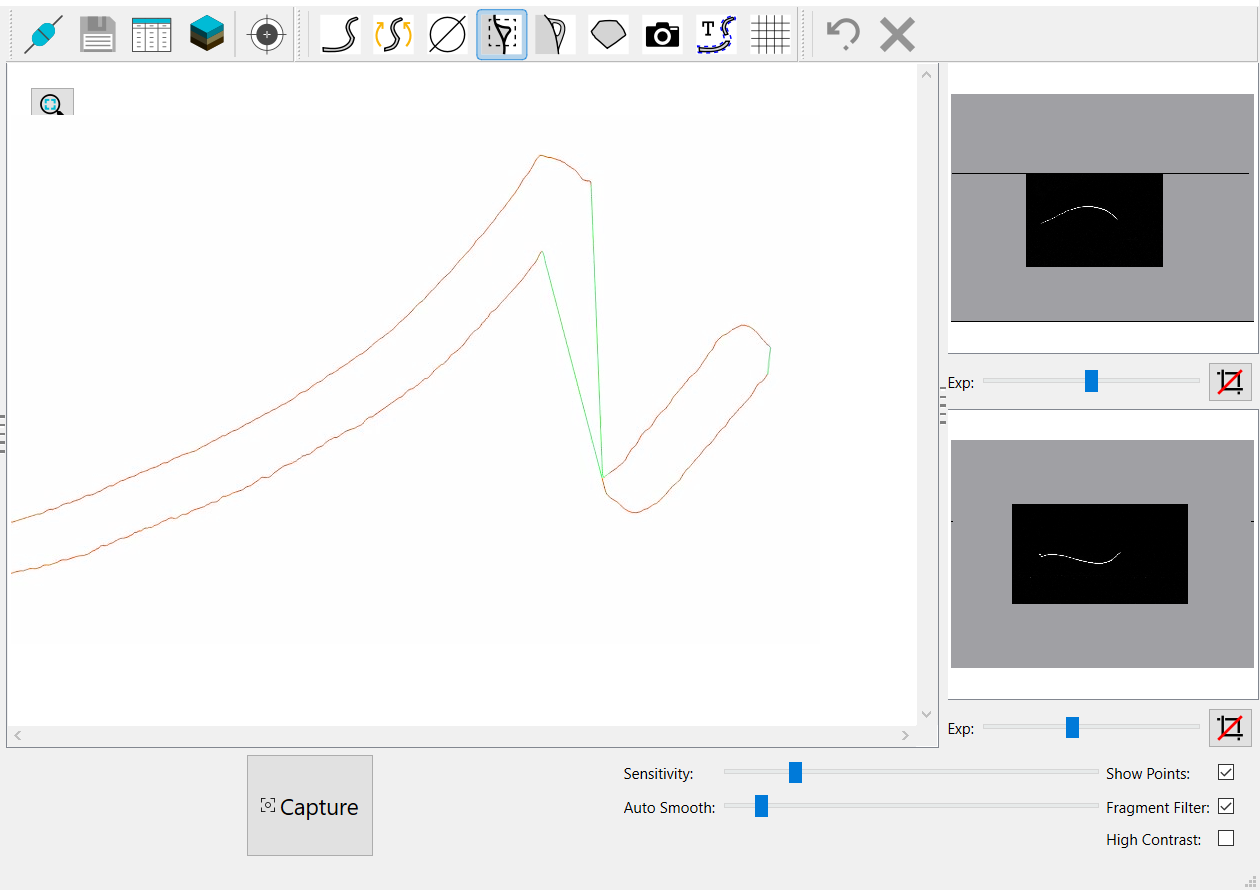
If the outline is incomplete:
- Trim () the unnecessary parts.
- Use Close Profile (
 ) to close the polygon.
 - Apply Smoothen () if needed.
- Use Fill Detail (
 ) to fill the shape.
