Profile Orientation
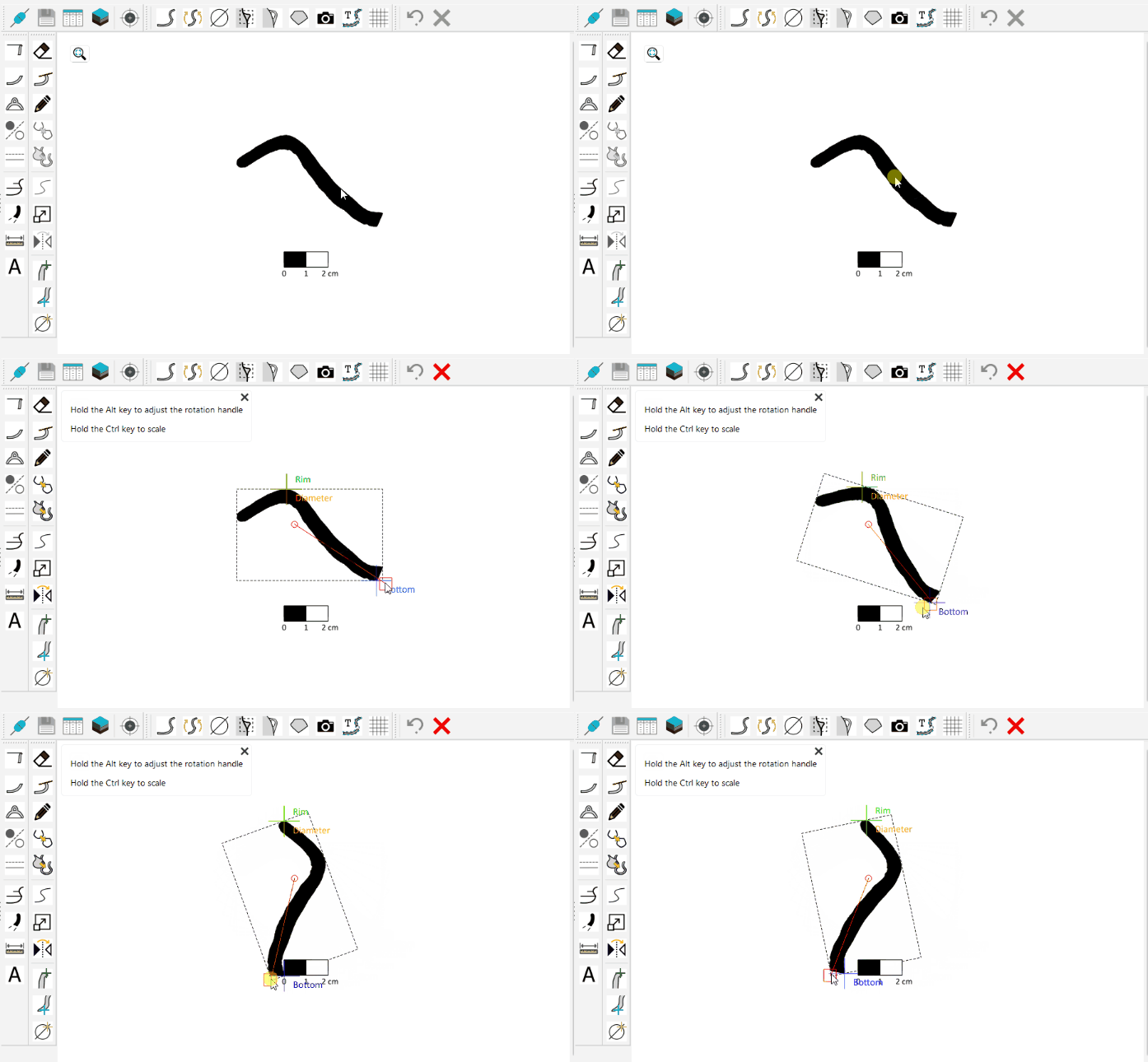
Rotate the captured profile to match the vessel’s original axis of symmetry.
| Icon | Description |
|---|---|
 |
Profile Orientation |
Manual Orientation
Select the captured shape by clicking on it. Drag the red square handle to rotate the profile, and reposition the red circle to set the center of rotation. Some experience in ceramic analysis is required to determine the correct orientation.
Laser-Assisted Orientation
For samples with an evenly preserved rim, the software can generate a real-time guiding profile to assist with alignment.
Place the sample upright with the rim pressed flat against the glass pane. The rim must contact the glass fully along its entire arc.

Switch to Capture Orientation mode.
| Icon | Description |
|---|---|
|
Capture Orientation |
Adjust the parameters to obtain the best possible signal in the live display.
💡 Tip: If the profile does not match the live data, flip it horizontally before aligning it using the Flip Horizontally ( ) tool.
Align the profile shape to the live profile data. Note that the live data preview is flipped vertically for convenience. Click and drag the shape body to reposition it. Use the red square to rotate it. Once satisfied with the alignment, click Capture to record the orientation.
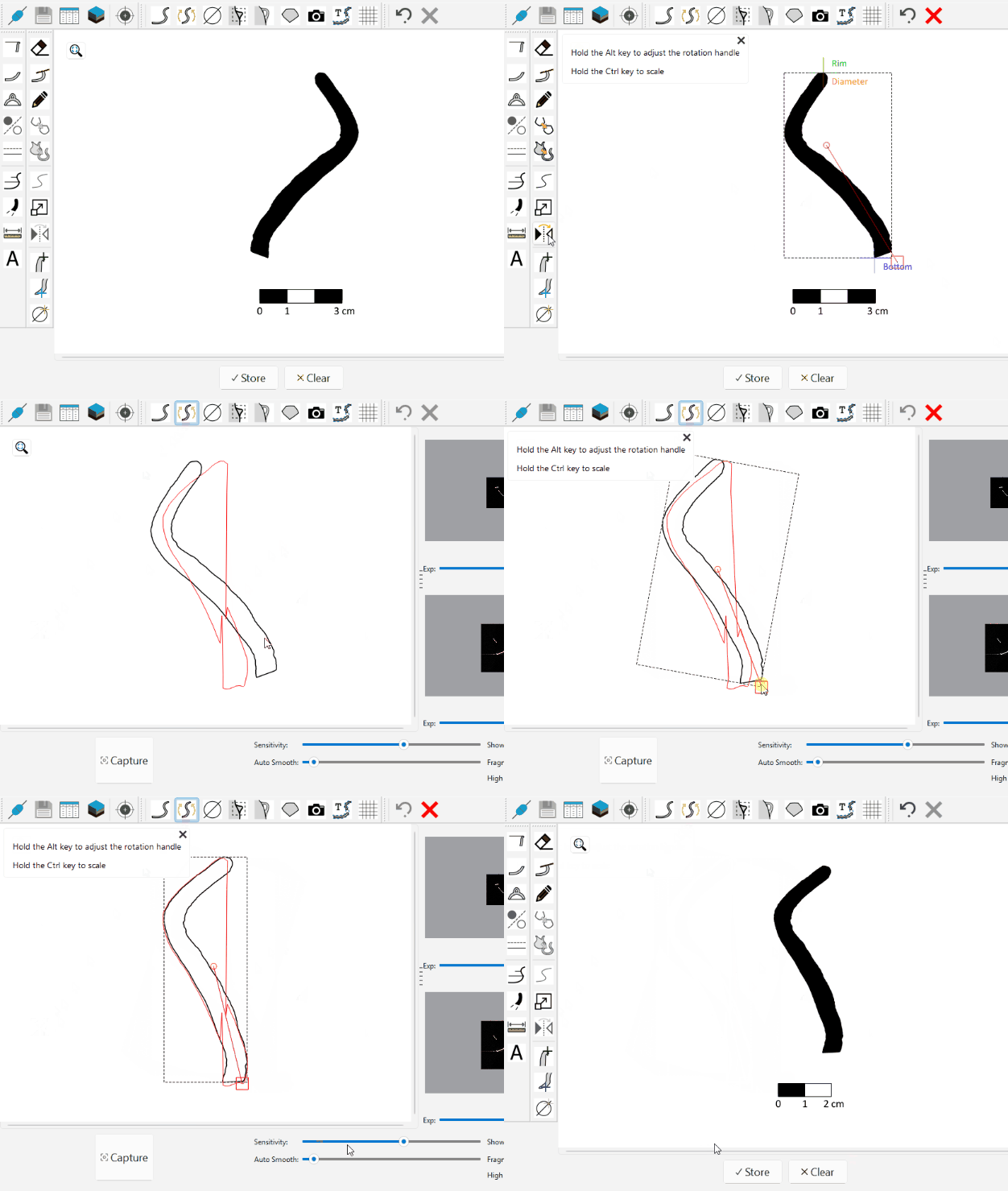
ℹ️ Note: The sample is placed rim-down on the glass, so the live profile data is automatically flipped vertically to match the drawing orientation.